Sharing your Agents
- Go to the Copilot website.
- Click ‘Create an Agent’ (as if making a new one)
- Click on ‘My Agents’ in the breadcrumb trail at the top of the Agent pop-up window. This will show a list of all your created Agents.
- Hover over an Agent’s name and a sharing icon will appear. Click this and make sure the link is set to work for ‘Anyone in your organization’.
- Copy the link and share it, e.g. by pasting in Aula, or sending via email.

How can people open Copilot Agents links that I share?
When you share a link to a Copilot Agent, the person who receives it just needs to click the link (see the Example Agents page if you want to try this out), and a new page in the Microsoft 365 cloud platform will open, with a pop-up asking them to ‘Add’ the Agent:
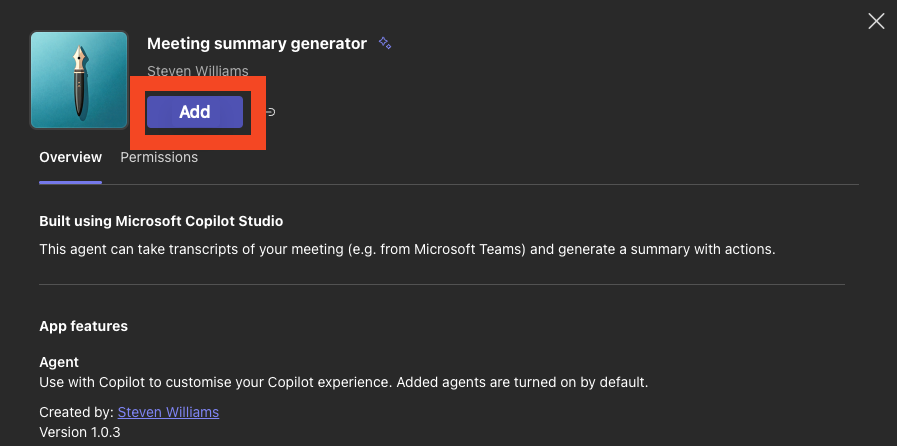
When people select ‘Add’, a new button should appear that says ‘Open’. When they select this, the Copilot web app should open, and a new chat will begin with the Copilot Agent.
Tip: If people have pressed the ‘Add’ button but the ‘Open’ button is unresponsive, normally if they go directly to the Copilot web app they will see that the Agent has been added.
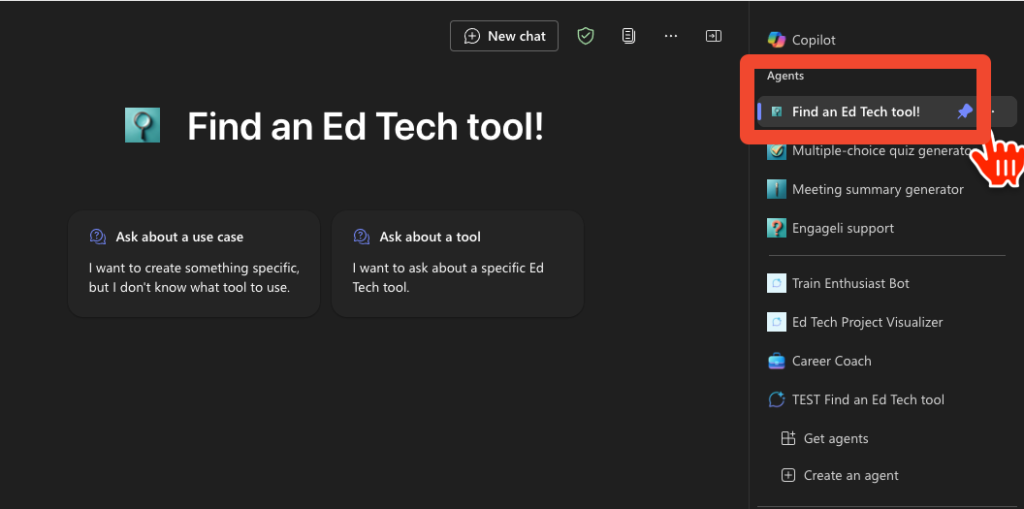
The Agent will be stored in the ‘Agents’ section at the of the Copilot side panel so it’s easy to return to it in future. It’s also possible to ‘pin’ agents to keep them at the top of the list.
Troubleshooting
- If you’ve shared or received a link to a Copilot Agent and it isn’t working, the person who shared the link may need to change the permission settings. See ‘Sharing your Agents‘.
- If people say the ‘Open’ button for the Agent isn’t working, normally if they go directly to the Copilot web app they will see that the Agent has been added.