Copilot vs other AI tools
The benefit of Copilot is that Microsoft has privacy and security information agreements with the university (click the shield icon when using Copilot to read more about this).
However, it’s important to know that the version of Copilot we have access to (which is essentially bundled for free with other apps like Word as part of the Education Microsoft 365 licence) is not as ‘powerful’ as the premium versions of AI tools such as ChatGPT, Gemini or Claude. There are several reasons for this:
- While Microsoft states it uses models from Open AI (the creator of ChatGPT) to power Copilot, it’s difficult to know what specific Open AI ‘model’ Copilot is using in a particular conversation. With other tools, you can choose the most appropriate model for the task – for example, you can choose newer ‘reasoning’ models for complicated tasks.
- Copilot has a smaller context window (this is how much information it can hold in its memory without ‘forgetting’ things), although it’s difficult to find out exactly what the limit is for each licence.
- From testing, Copilot also appears to have strict limits on output tokens (how much information it will produce per response).
- The combination of a small context window and limits on output tokens means that it is generally not advisable to use Copilot to work with large documents or datasets. You can try to get around its limitations by ‘chunking up’ tasks – for example, by asking it to look at parts of a document at a time and starting new chats – but this requires more manual effort on the user’s part.
What are ‘hallucinations’? How can I stop them?
‘Hallucinations’ are when an AI tool creates false information. It’s not possible to 100% stop this happening, but there are things you can do to reduce the risk – see: Tips for using Copilot – Copilot Cookbook (coventry.domains)
Can Copilot work with documents or spreadsheets you upload?
Yes, you can upload documents to Copilot and ask it to do things like analyse or summarize them. See Get data insights and visualizations and Work with a spreadsheet for example recipes. However, it’s important to be aware that Copilot seems to have a relatively small ‘token limit’ (how many words it will process) when you ask it to look at attached documents. Frustratingly, it’s quite opaque about what the limit is – if you give it longer documents, it often ends up analysing only a section but presenting it as a full analysis. This means it’s difficult to know how much of the data Copilot’s analysis is actually based on unless you already know the data set well. Currently, other tools (like ChatGPT and Claude) work better with large data sets. If you want to try using larger data sets with Copilot, you could experiment with ‘chunking them up’ into smaller spreadsheets.
Can Copilot create spreadsheets?
Copilot can create spreadsheets, although it can be a bit buggy. Try asking it to ‘Create a spreadsheet’ with the information you want. It should give you a download link with an Excel file.
However, sometimes it will give you a download link that doesn’t work, or it will give you a link to a spreadsheet you previously uploaded earlier in the chat!
Sometimes it’s better just to ask Copilot to ‘create a table’. It will create the table inside the chat window. You can then manually select and copy the information in the table and paste it into Excel (tip: paste as plain text using right-click > paste special). Alternatively, follow these steps to export the table as an Excel spreadsheet:
Step 1: Select the ‘Edit in Pages’ button at the bottom of the chat message with the table in Copilot. A panel will open on the right.
Step 2: Select the three dots above the table in the right-hand panel.
Step 3: Select ‘Export to Excel’. This will open the table in the online version of Excel.
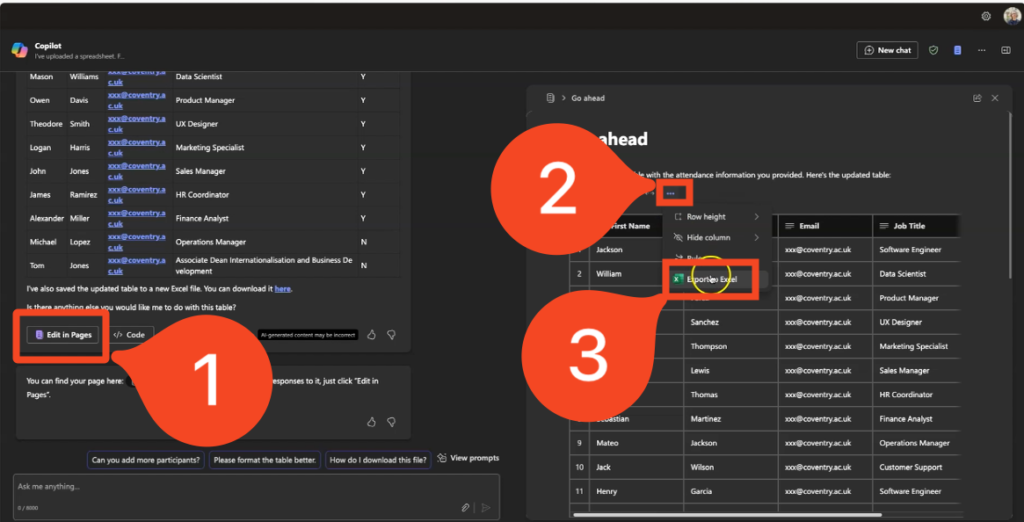
Step 4: In the new Excel window, select ‘Save As’ then save it online to your OneDrive, or download a copy to your computer.
What are ‘Agents’?
See Copilot Agents.